Add Photos

Add Photos of Your Vehicle to Inventory

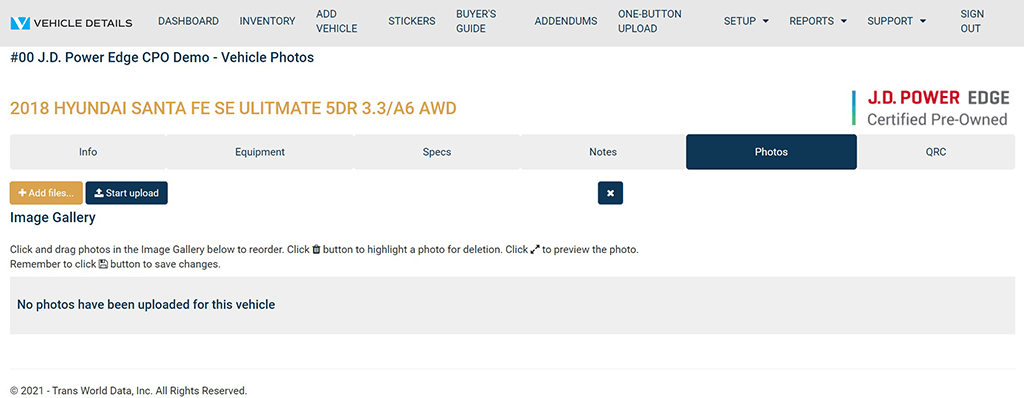
  • In the Vehicle Edit screen, click the Photos tab at the top.
  • Click the Add Files button. A browser window will pop-up.
  • Browse to the Photos folder on your computer and select the photo(s) that you would like to add to your vehicle.
  • Individual photo size should not exceed 3.5 MB.
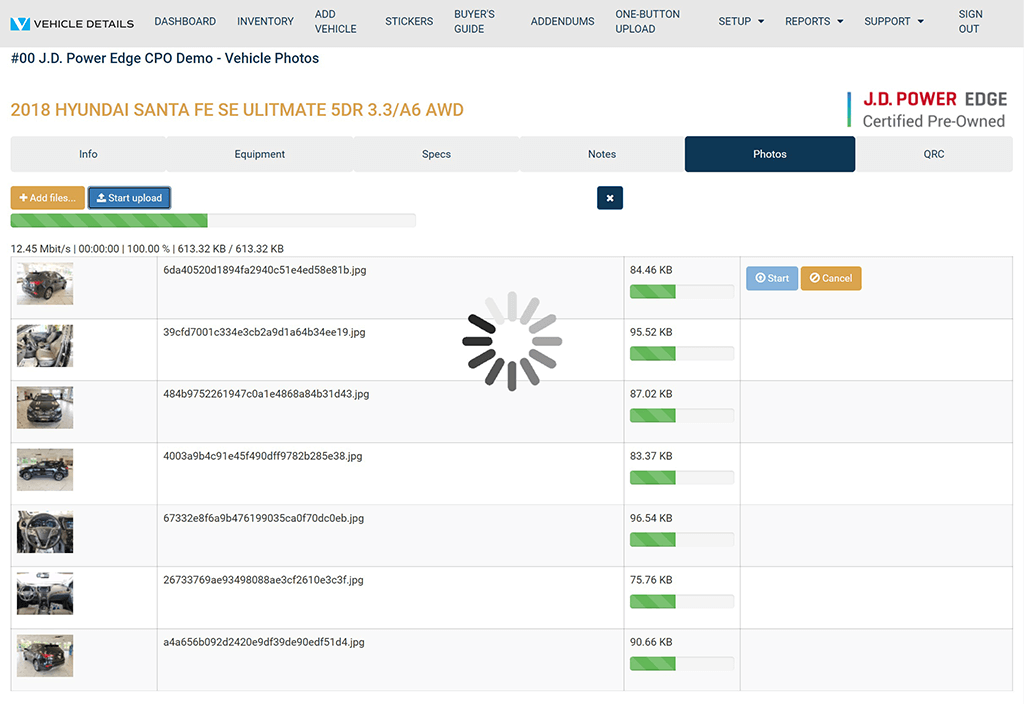
  • Click Start Upload to continue. Wait for the upload to complete. Your uploaded images will appear in the Photos Tab of the Vehicle Edit Screen.
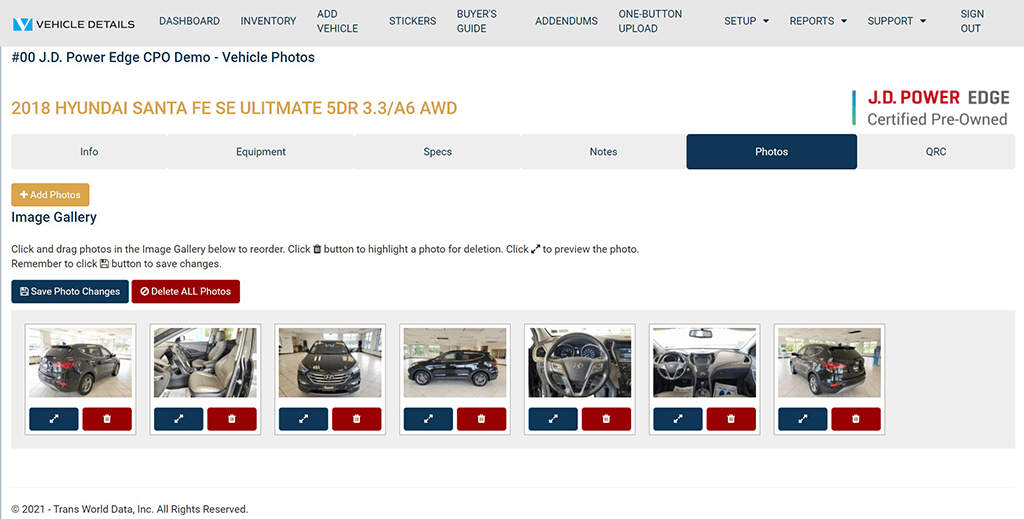
  • You can drag and drop your photos to the correct order.
  • If you need to delete an image, click on the garbage can image and then click Save Photo Changes.
  • After your photos have been added to your vehicle, click the Save Photo Changes button at the top to save this vehicle to your inventory.

Add Files to the Image Gallery

Vehicle Details Image Gallery

Start Upload of Vehicle Photos

Vehicle Details Image Upload

Organize and Manage Vehicle Photos

Vehicle Details Manage Photos

Program Manuals

NATIONAL PROGRAM NEW YORK PROGRAM

Contact your JM&A Group Representative at jmacustomerservice@jmagroup.com

Contact Us

For Inventory Management and Window Sticker Application Technical Support,
9:00 AM to 4:00 PM Central Time, Monday through Friday, please call:

Phone: (262) 240-9652

Email: support@vehicledetails.com

Ticket System: support.vehicledetails.com

For claims regarding the Limited Warranty, please call or fax: (800) 327-5172.

To order Limited Warranty forms, Buyers Guides or J.D. Power® Edge Pre-Owned* Program marketing materials, please call: (888) JMA-FORMS.

For billing questions, please call: (800) 443-9841 and press 6.